I've received a Quarantine Digest email – what should I do next?

What's in this guide?

You've had an email called "Your Quarantine Digest" and you're wondering what it's for. No problem – this guide explains it in plain English.

We'll cover:

  • What a Quarantine Digest is and why you've been sent one
  • What's in the email
  • How to deliver, preview or delete a held message
  • What to do when you see "Request" instead of "Deliver"
  • How to ask for a fresh digest, or log in to see your own quarantine

What is a Quarantine Digest?

Our email security checks every message on its way to your inbox. If it thinks one might be spam, a phish or something else you wouldn't want, it holds the message back in quarantine instead of delivering it.

The Quarantine Digest is a short summary email that lists what's been held for you, so you can decide what happens to it. 

When will I get one?

Digests go out on a schedule, which is set by us or your company's administrator. They can be sent hourly or once a day, on whichever days are chosen.

You'll only get a digest if there's something new in quarantine since the last one. So if your inbox has been quiet, you won't hear from us.
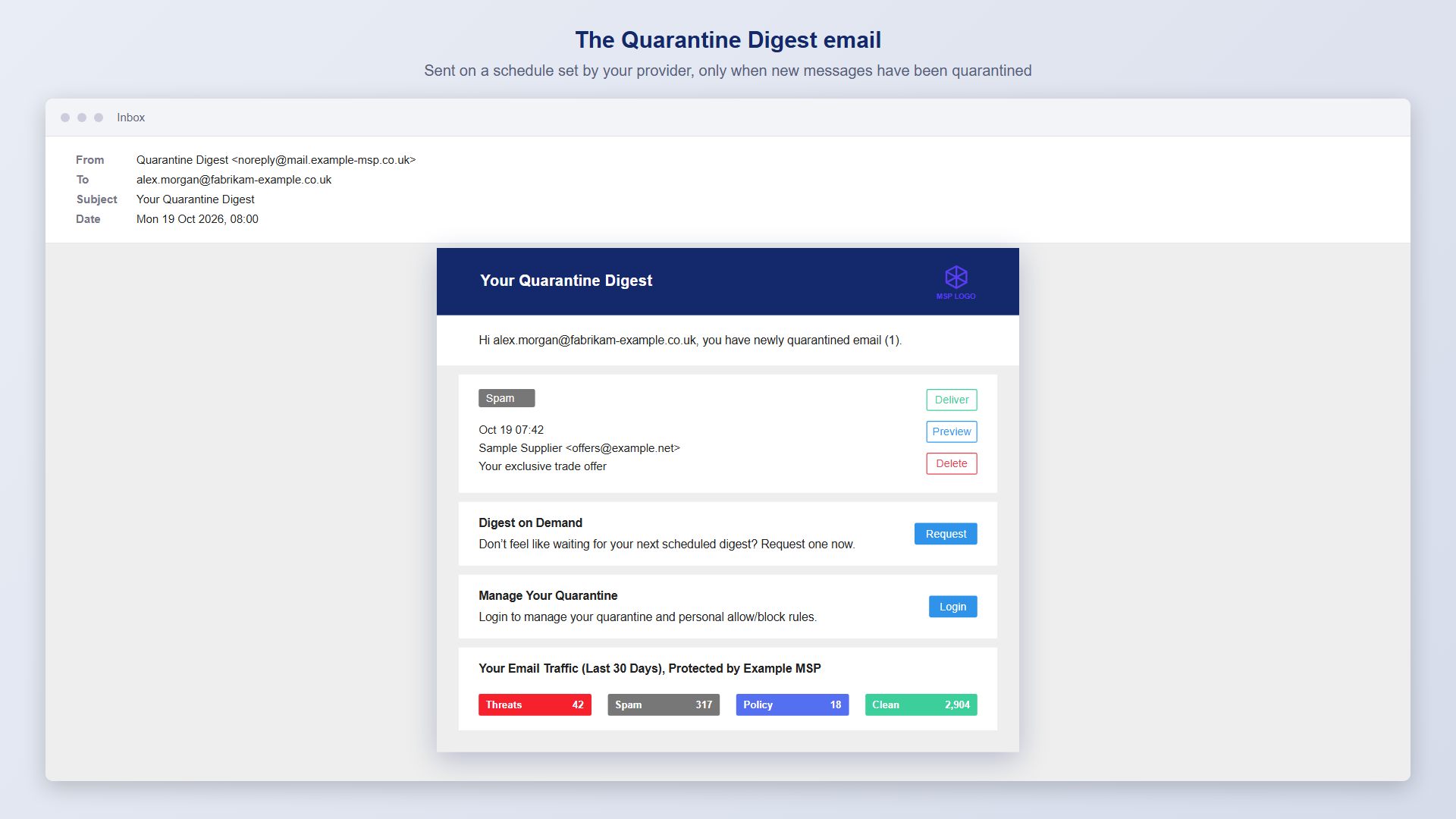
A Quarantine Digest listing three held messages, with Deliver, Preview, Delete and Request buttons

What's in the email?

Each held message has its own box, showing:
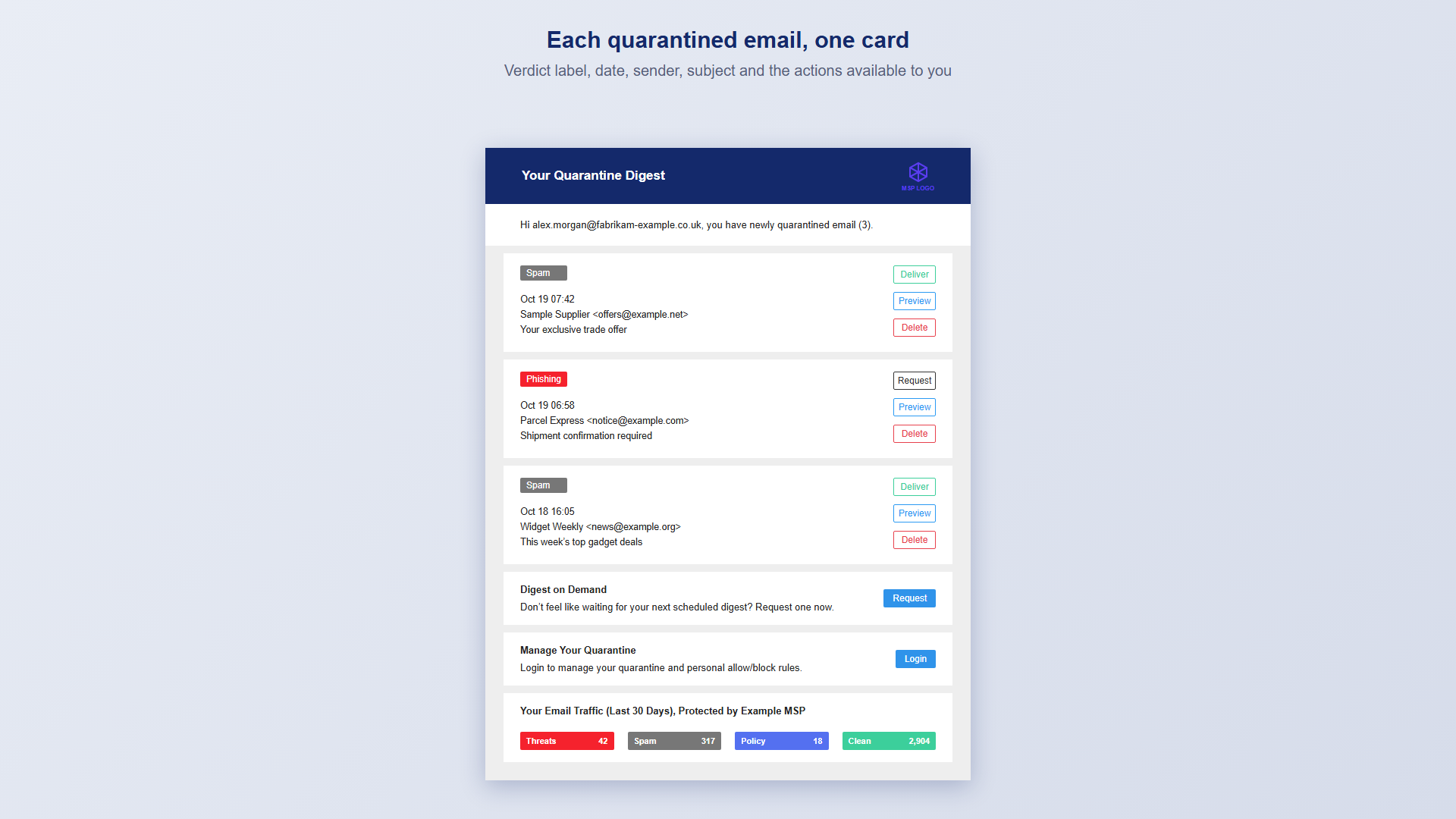
  • A label that tells you why it was held, such as Spam or Phishing
  • The date and time it arrived
  • The sender and the subject line
  • Buttons for what you can do with it
The 30-day email traffic summary showing Threats, Spam, Policy and Clean

Underneath the messages, you'll see two extra options (Digest on Demand and Manage Your Quarantine, covered below) and a summary of your email over the last 30 days:
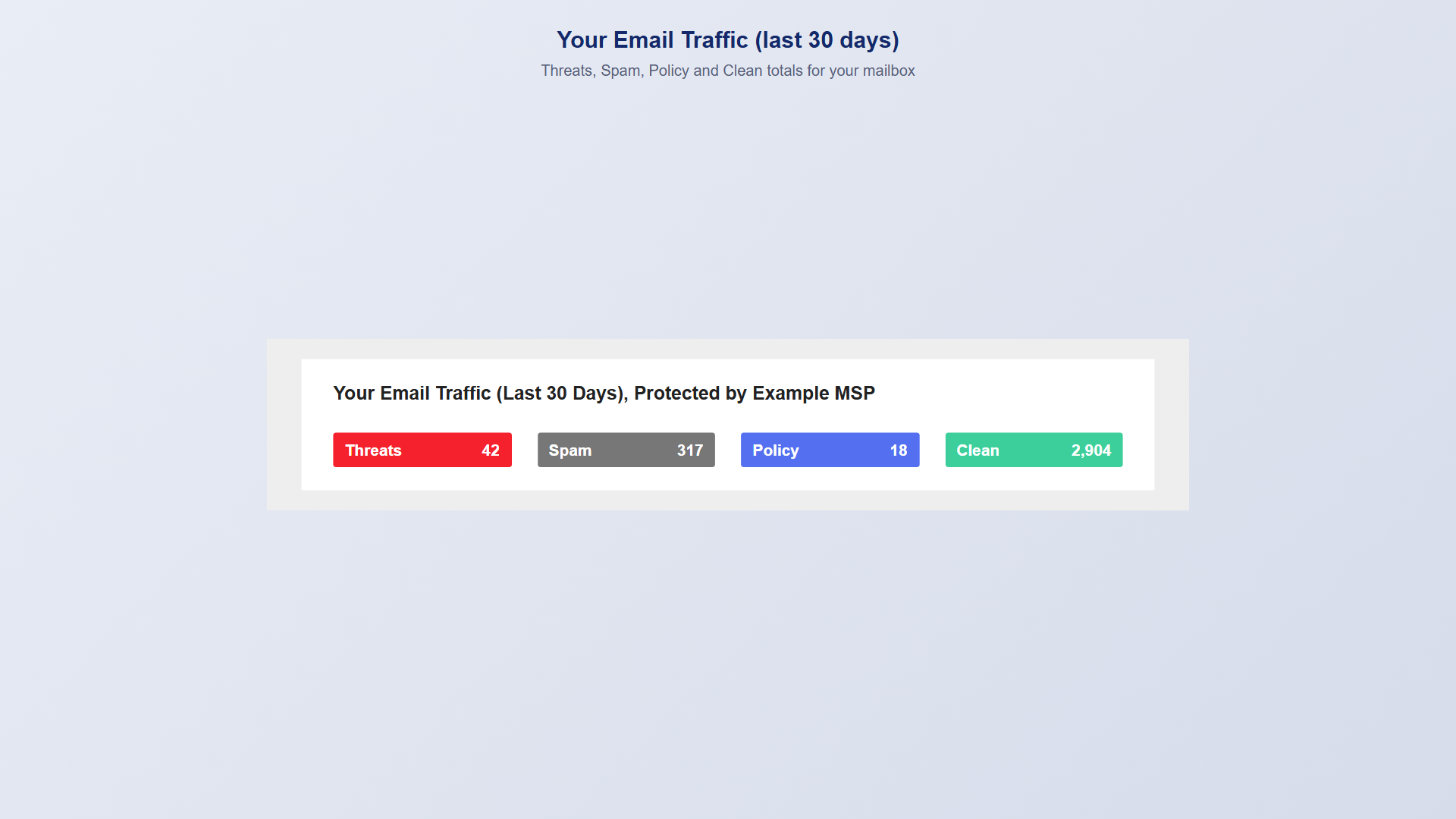
  • Threats – messages marked as malware, phishing or impersonation
  • Spam – messages marked as spam
  • Policy – messages held by your company's rules, such as banned attachments or geo filtering
  • Clean – messages that were safe
The message preview page with Deliver and Delete options

What do the buttons do?

  • Deliver – releases the message from quarantine into your inbox
  • Preview – lets you read it safely in your browser first
  • Delete – removes it from quarantine
  • Request – asks an administrator to release it for you

How to preview a message

Not sure about something? Preview it first.
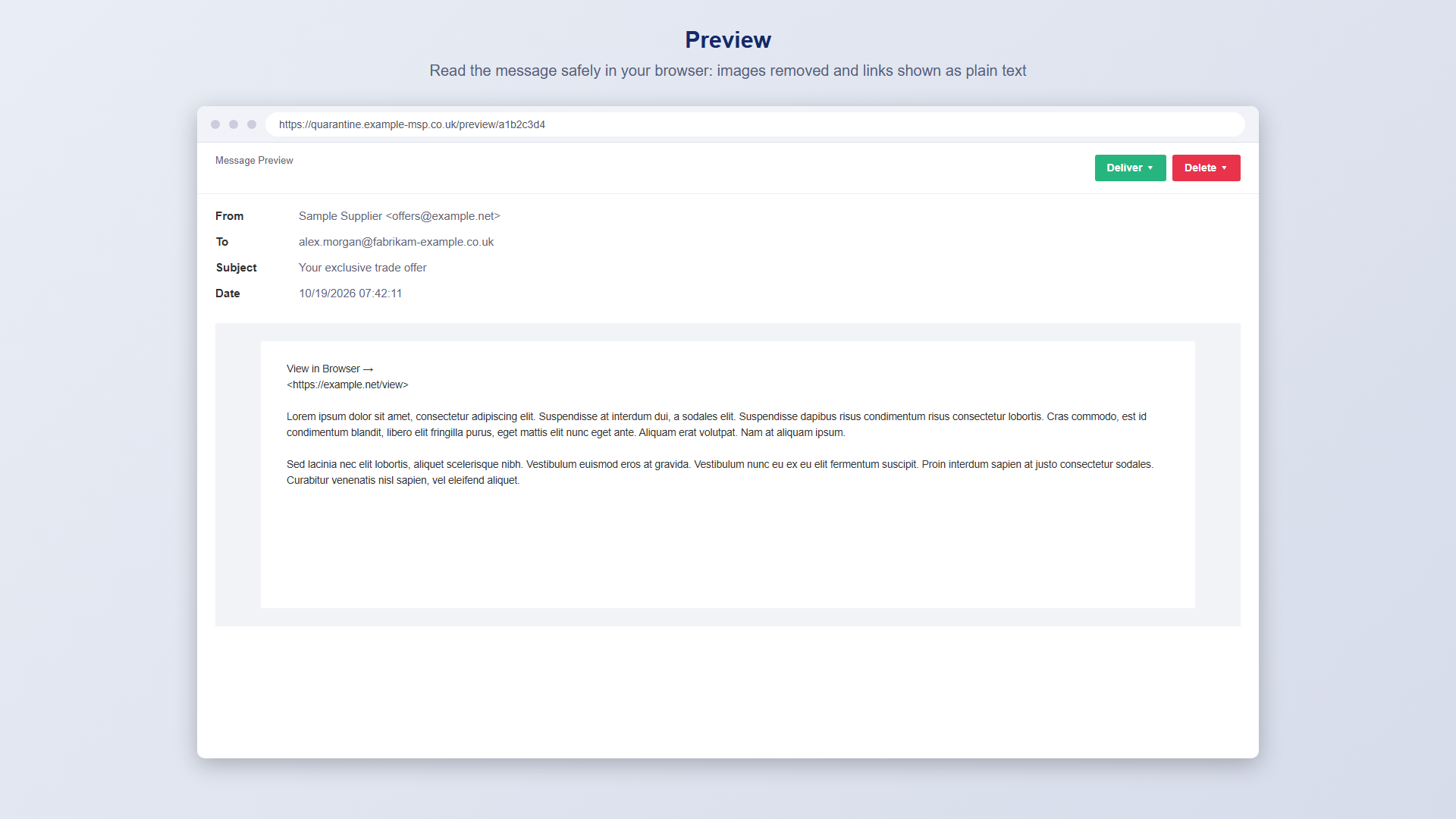
  • Click Preview next to the message
  • It opens in your browser with images removed and links shown as plain text, so it's safe to read
  • Decide whether to Deliver or Delete it from there
The message preview page with Deliver and Delete options

How to deliver a message

  • Click Delete next to the message
  • A page opens to tell you it's been deleted
  • If you never want to hear from them again, choose Always block sender, or Always block sender domain to block everyone at that company
  • Click Confirm if you've picked one of those

You can't allow a whole free-mail domain like Gmail or Hotmail. 
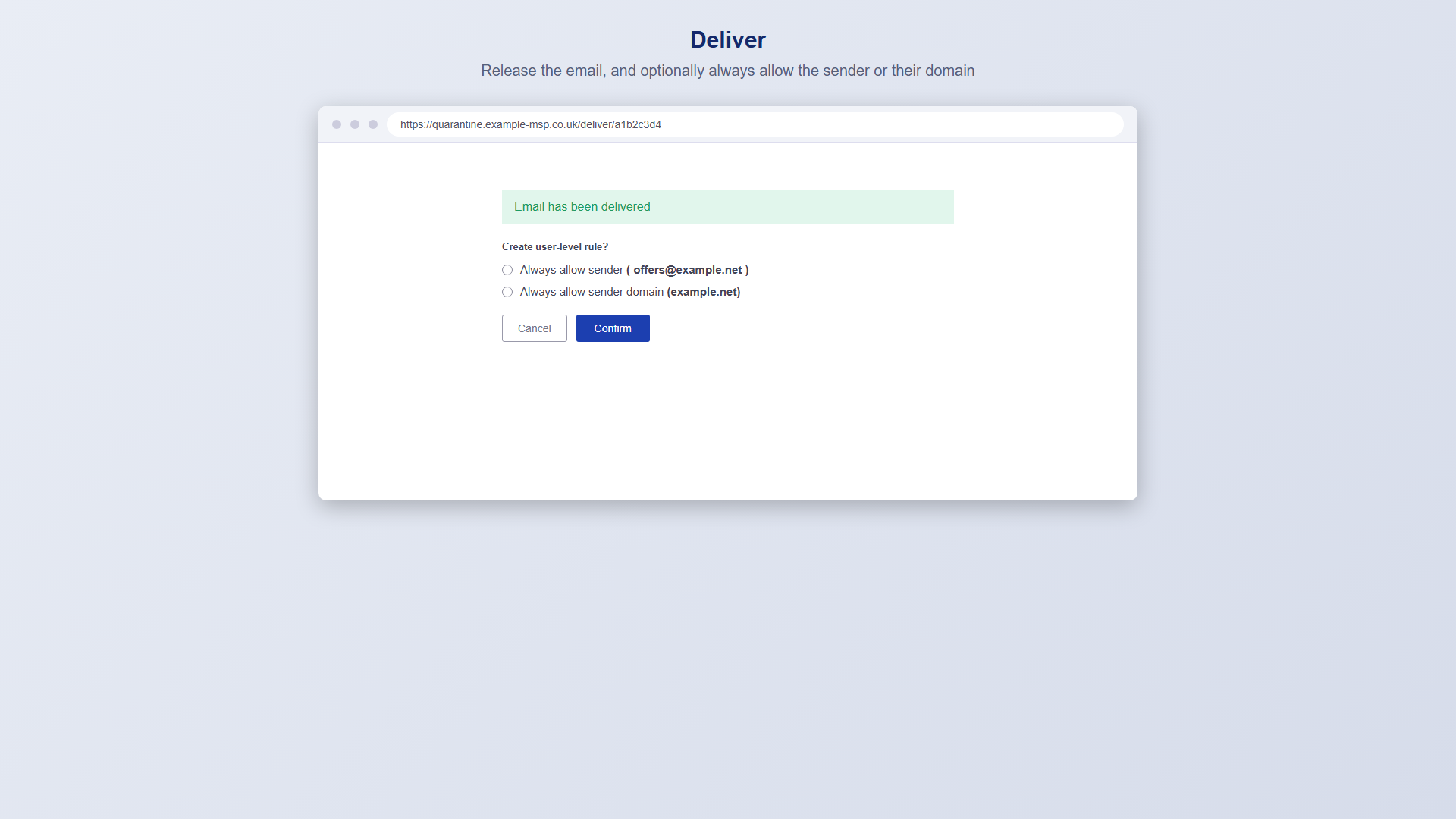
Confirmation page after delivering a message, with options to always allow the sender or domain

How to delete a message

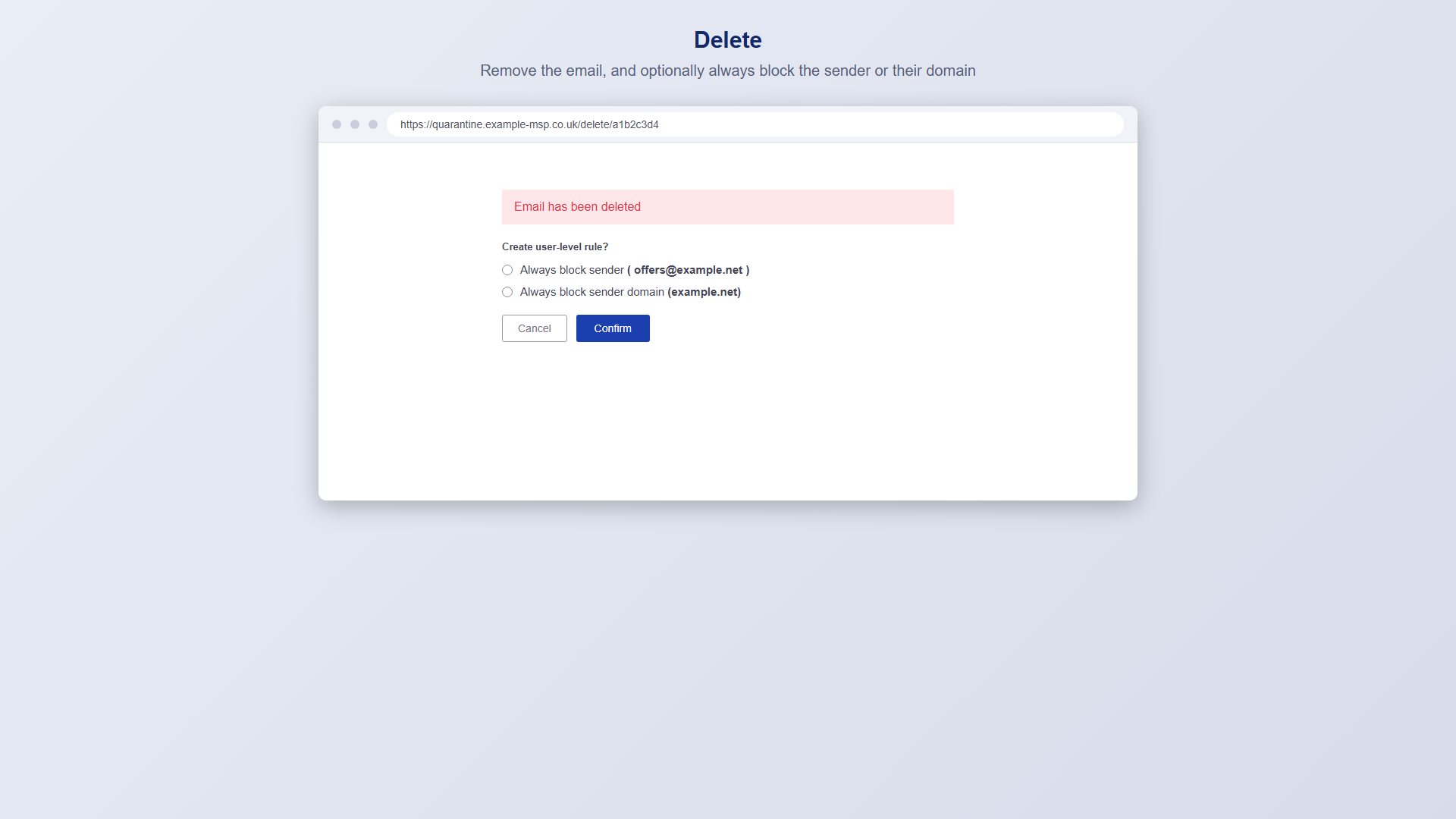
  • Click Delete next to the message
  • A page opens to tell you it's been deleted
  • If you never want to hear from them again, choose Always block sender, or Always block sender domain to block everyone at that company
  • Click Confirm if you've picked one of those
Confirmation page after deleting a message, with options to always block the sender or domain

Why can I only see "Request" on some messages?

For your protection, some messages can't be released by you.

Which button you get depends on the label:

Label Who can release it
Spam (Definite, High and Likely) You
Impersonation You
Infomail You
Phishing Administrator only
Malware Administrator only
Banned (attachments blocked by policy) Administrator only
Policy Geo Administrator only


If you see Request, click it and we'll be notified. Allow rules don't override these, so even a sender you've allowed will still be held if the message looks like phishing or malware.

If you're not sure why something has been held, please ask us before pushing for a release.
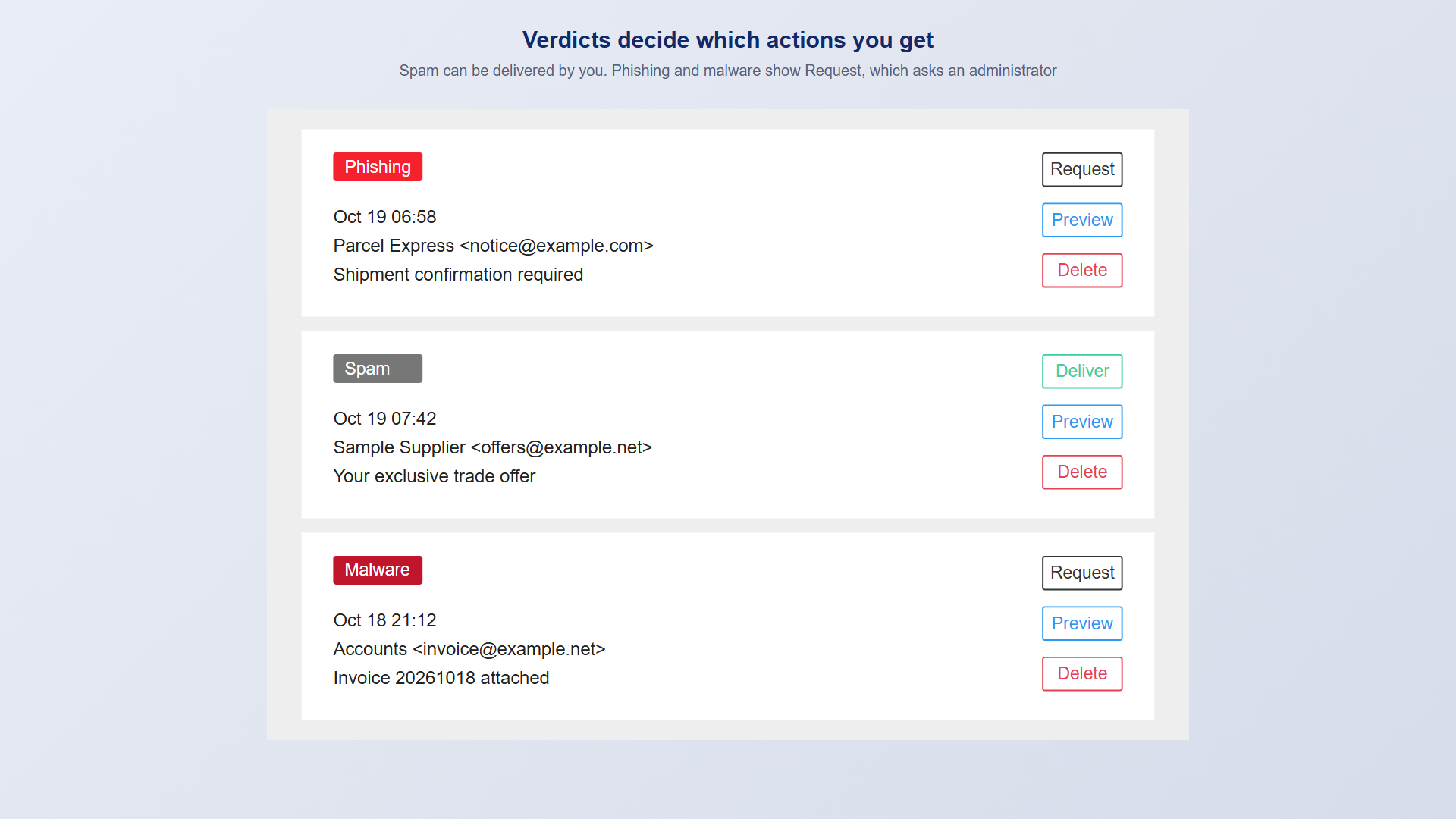
Phishing and malware messages show a Request button, while spam shows Deliver

What is "Digest on Demand"?

Don't want to wait for your next scheduled digest? Click Request in the Digest on Demand box. A page opens in your browser.
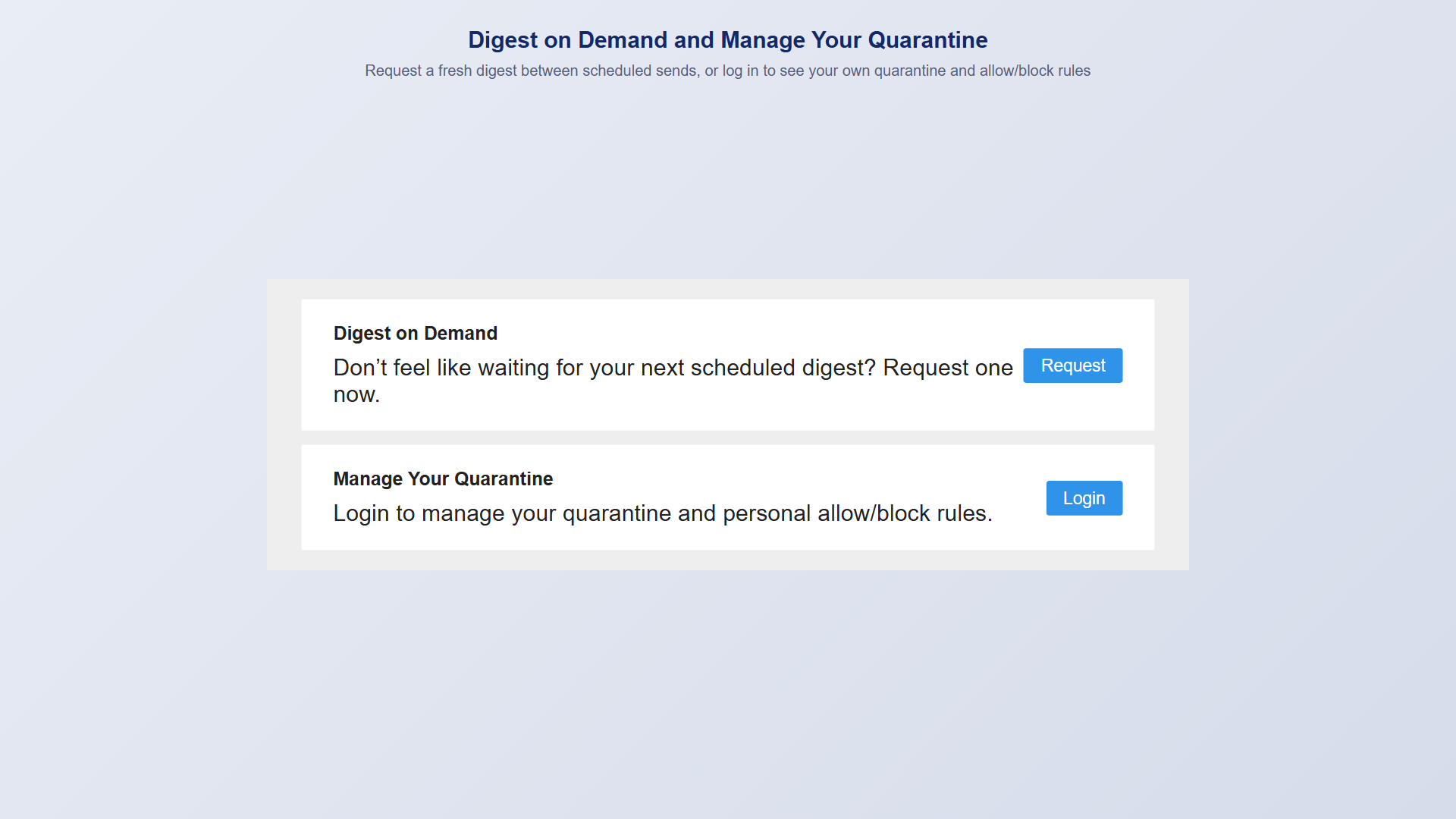
  • If there's new quarantined email, you'll see a success message and a fresh digest will be on its way
  • If there isn't, you'll see a warning and nothing is sent

What is "Manage Your Quarantine"?

Click Login in the Manage Your Quarantine box to see your quarantine in full. You can sign in with your Microsoft credentials. You'll see only the email sent to your address, along with any allow and block rules you've created.
The Digest on Demand and Manage Your Quarantine boxes in the digest email

How long are messages kept?

Quarantined email is kept for 28 days. After that, you can't deliver, preview or delete it, so it's worth checking your digests regularly. 

Missing an email?

 If you're expecting something that hasn't arrived, check your latest digest first. If it isn't there, get in touch and we'll track it down for you. 

Need further support?

One2Call customers can contact the IT Service Desk for help.

Thank you for helping us protect your organisation’s systems and data.

 

Contact Us

View Google Maps

Monday 7am-7pm
Tuesday 7am-7pm
Wednesday 7am-7pm
Thursday 7am-7pm
Friday 7am-7pm

hello@one2call.net

(UK) 0114 230 0080

More ways to contact us